 |
Home | HTML | Data Types | DOM | JavaScript | JS Debugging |
Following along
Remember to “git pull” on teacher repository to update to lates.
- Run this notebook in VSCode
- Activate Help-Toogel Developer Tools to add console outputs to runtime experience
Referencing HTML elements using javascript
- To get an HTML element, use
document.getElementById("idTag") - You will use the ID that you set in your HTML
- if you
console.logthe resulting variable you will get some information about the element
%%html
<!-- the ID must be specified within the element -->
<h1 id="domTitleID">My Title</h1>

<!-- javascript goes here -->
<script>
var titleElement = document.getElementById("domTitleID")
<!-- outputs h1 tag -->
console.log("Example #1, show element in DOM")
console.log(titleElement)
</script>
Getting the data within the HTML element
- The variable titleElement stores the “object”
- Basically think of this as the group of data enclosed in HTML tag
- To access a certain type of data from an “object” we use “.” notation
- .innerHTML gets data within center of tag
%%html
<!-- the ID must be specified within the element -->
<h1 id="domTitleIDget">My Title</h1>

<!-- javascript goes here -->
<script>
var titleElement = document.getElementById("domTitleIDget")
<!-- outputs h1 innerHTML from h1 tag -->
console.log("Example #2, show innerHTML")
console.log(titleElement.innerHTML)
</script>
Setting the data within the HTML Element
- The innerHTML data in this “object” can be set like a variable
- Change the value of the innerHTML using the “=” (assignment) operator
%%html
<!-- the ID must be specified on the element -->
<h1 id="domTitleIDset">My Title</h1>

<!-- javascript goes here -->
<script>
var titleElement = document.getElementById("domTitleIDset")
titleElement.innerHTML = "Set and Update My Title"
<!-- outputs h1 innerHTML after h1 tag has been updated -->
console.log("Example #3, update innerHTML")
console.log(titleElement.innerHTML)
</script>
Creating elements
- Create a new element with the document.createElement function -> takes in the type of element
- Set properties in the element just like the “h1” example
%%html
<!-- the ID must be specified on the element -->
<div id="divContainerID">
    <h1 id="h1ElementID">My Title</h1>
</div>

<!-- javascript goes here -->
<script>
   // creates a new element
   var pElement = document.createElement("p")
   pElement.innerHTML = "Starting a paragraph of text."

   // outputs p tag after it has been created
   console.log("Example #4, create a p tag within JS")
   console.log(pElement)
</script>
Issue! How to Create element that appears in HTML?
- Here is a visualization of what is happening => the “p” is not placed inside the HRML page!

Solution
- Correct by placeing the element somewhere in the page
- For example, we could add the element within the div
- For this, use the appendChild function on the div object (the parameter would be the p element we created)
- Remember, use the getELementById to get the object for something in the html (the div!)
- Updated Diagram

%%html
<!-- the ID must be specified on the element -->
<div id="divContainerIDset">
    <h1 id="h1ElementIDset">My Title</h1>
</div>

<!-- javascript goes here -->
<script>
   // creates a new element
   var pElement = document.createElement("p")
   pElement.innerHTML = "Starting a paragraph of text."

   // outputs p tag after it has been created
   console.log("Example #5, add p tag to HTML")
   console.log(pElement)

   // place the p element inside the HTML page
   var div = document.getElementById("divContainerIDset")
   div.appendChild(pElement)
</script>
Functions in JavaScript, using with DOM
- Functions allow you to “do something”
- ex. “eat food” in a Snake Game
- Functions were used in previous examples
- console.log = “print something”
- document.getElementById = “find an element with id”
- Functions take in parameters, what to do (inside the parenthesis)
- the parameter tells console.log what to print
- the parameter in document.getElementById tells the id of the element
- Functions can be used with DOM as well, thes will be shown below
Creeating functions
- document functions functions were used to create a lot of functionality, but how can a developer create their own?
- function are useful to avoid writing the same code over and over again
- function can contain parameters for input (they effectively become variables)
- function can contain a return, the are the “output” of the function
%%html
<!-- the ID must be specified on the element -->
<div id="divContainerIDfunction">
    <h1 id="h1ElementIDfunction">My Title</h1>
</div>

<!-- javascript goew here -->
<script>
    // define a function => takes parameter text, returns a new p tab
    function createPTag(text) {
        // creates a new element
        var pElement = document.createElement("p")

        // using the parameter like a variable
        pElement.innerHTML = text

        // outputs p tag after it has been created
        console.log("Example #6, add p tag using a function")
        console.log(pElement)

        return pElement;
    }

    // using a function to create p tag
    var pTag = createPTag("Starting a paragraph with cooler text than before.")

    // place the p element in the webpage
    var div = document.getElementById("divContainerIDfunction")
    div.appendChild(pTag)
</script>
OnClick Event
- Run a function when an event occurs
- In this case, the p tag is created when the button is clicked
%%html
<!-- the ID must be specified on the elements -->
<button id="buttonID">Click here!</button>

<div id="divContainerIDbutton">
    <h1 id="h1ElementIDbutton">My Title</h1>
</div>

<!-- our javascript goe here -->
<script>
    // define a function => takes parameter text, returns a new p tab
    function createPTag(text) {
        // creates a new element
        var pElement = document.createElement("p")

        // using the parameter like a variable
        pElement.innerHTML = text

        // outputs p tag after it has been created
        console.log("Example #7.1, add p tag using a function")
        console.log(pElement)

        return pElement;
    }

    // create a function that sets specific text and adds to div
    function addPTagOnButton() {
        // using our new function
        var pTag = createPTag("Starting a paragraph with text created on button press.")

        // place the p element in the webpage
        var div = document.getElementById("divContainerIDbutton")

        // add p tag to the div
        div.appendChild(pTag)

        // outputs p tag after it has been created
        console.log("Example #7.2, update container adding a 'p' tag")
        console.log(div)
    }

    // add the P tag when our button is clicked
    var myButton = document.getElementById("buttonID")
    myButton.onclick = addPTagOnButton

</script>
Hacks
- Copy your HTML code from the HTML hacks. Write a Javascript snippet to switch the links of the two a tags when a button is pressed. Once they are switched, change the inner HTML of the top p tag to the word “switched!”
%%html

<div>
  <p id="p1">This is a list of the UEFA Champions League winners for the past 5 years.</p>
  <a href="https://en.wikipedia.org/wiki/List_of_European_Cup_and_UEFA_Champions_League_finals"><button id="btn">Source: All-time UEFA Champions League Winners</button></a>
</div>

<div>
  <br>
  <p><b>The 2018-19 Champions League final</b> was played between <b>Liverpool</b> and <b>Tottenham Hotspur</b> at the Metropolitano Stadium in Madrid, Spain. <b>Liverpool</b> won the game <b>2-0</b>.</p>
  <p>Click on the image below for more information about the match.</p>
  <a href="https://en.wikipedia.org/wiki/2018%E2%80%9319_UEFA_Champions_League"><img src="https://cdn.vox-cdn.com/thumbor/zQL38YWc15GfSXuDylA4atRuLac=/0x0:4097x2731/1200x800/filters:focal(2267x671:2921x1325)/cdn.vox-cdn.com/uploads/chorus_image/image/63933989/1153093191.jpg.0.jpg"></a><br><br>
  <p><b>The 2019-20 Champions League final</b> was played between <b>Bayern Munich</b> and <b>Paris Saint-Germain</b> at the Estádio da Luz stadium in Lisbon, Portugal. <b>Bayern Munich</b> won the game <b>1-0</b>.</p>
  <p><b>FUN FACT:</b> This match was played behind closed doors due to the COVID-19 pandemic. Click on the image below for more information about the match.</p>
  <a href="https://en.wikipedia.org/wiki/2019%E2%80%9320_UEFA_Champions_League"><img src="https://i2-prod.mirror.co.uk/incoming/article23908401.ece/ALTERNATES/s615b/0_Champions-League-Quarter-Final-Second-Leg-Paris-St-Germain-v-Bayern-Munich.jpg"></a><br><br>
  <p><b>The 2020-21 Champions League final</b> was played between <b>Manchester City</b> and <b>Chelsea</b> at the Estádio do Dragão stadium in Porto, Portgual. <b>Chelsea</b> won the game <b>1-0</b>.</p>
  <p><b>FUN FACT:</b> This match was played with a limited attendance due to the COVID-19 pandemic. Click on the image below for more information about the match.</p>
  <a href="https://en.wikipedia.org/wiki/2020%E2%80%9321_UEFA_Champions_League"><img src="https://cdn.vox-cdn.com/thumbor/okTCEToiN8-ZqNRYTkjuuxC8sDc=/0x0:3901x2601/1200x800/filters:focal(1130x236:1754x860)/cdn.vox-cdn.com/uploads/chorus_image/image/69904041/1321404820.0.jpg"></a><br><br>
  <p><b>The 2021-22 Champions League final</b> was played between <b>Liverpool</b> and <b>Real Madrid</b> at the Stade De France in Saint-Denis, France. <b>Real Madrid</b> won the game <b>1-0</b>.</p>
  <p>Click on the image below for more information about the match.</p>
  <a href="https://en.wikipedia.org/wiki/2021%E2%80%9322_UEFA_Champions_League"><img src="https://media.cnn.com/api/v1/images/stellar/prod/220528220437-madrid-goal.jpg?c=original"></a><br><br>
  <p><b>The 2022-23 Champions League final</b> was played between <b>Manchester City</b> and <b>Inter Milan</b> at the Atatürk Olympic Stadium in Istanbul, Turkey. <b>Manchester City</b> won the game <b>1-0</b>.</p>
  <p>Click on the image below for more information about the match.</p>
  <a href="https://en.wikipedia.org/wiki/2022%E2%80%9323_UEFA_Champions_League"><img src="https://cdn.theathletic.com/app/uploads/2023/06/10164133/rodri-city-goal-1024x689.jpg"></a><br><br>
</div>

<script>
  document.getElementById("btn").addEventListener("click", function() { // listening for the "click" event, which occurs when the button is clicked
    var links = document.getElementsByTagName("a"); // retrieves all old <a> links and stores them in a new "links" variable
    for (let i = 0; i < links.length; i++) { // iterates through all <a> elements as long as 'i' is less than the total number of links in the code
      links[i].href = "https://youtu.be/dQw4w9WgXcQ"; // changing the link of the button itself and all the other <a> links
    }
    document.getElementById("p1").innerHTML = "Switched!"; // displaying "Switched!" once the button or the other <a> links are clicked
  });
</script>
The 2018-19 Champions League final was played between Liverpool and Tottenham Hotspur at the Metropolitano Stadium in Madrid, Spain. Liverpool won the game 2-0.
Click on the image below for more information about the match.

The 2019-20 Champions League final was played between Bayern Munich and Paris Saint-Germain at the Estádio da Luz stadium in Lisbon, Portugal. Bayern Munich won the game 1-0.
FUN FACT: This match was played behind closed doors due to the COVID-19 pandemic. Click on the image below for more information about the match.

The 2020-21 Champions League final was played between Manchester City and Chelsea at the Estádio do Dragão stadium in Porto, Portgual. Chelsea won the game 1-0.
FUN FACT: This match was played with a limited attendance due to the COVID-19 pandemic. Click on the image below for more information about the match.

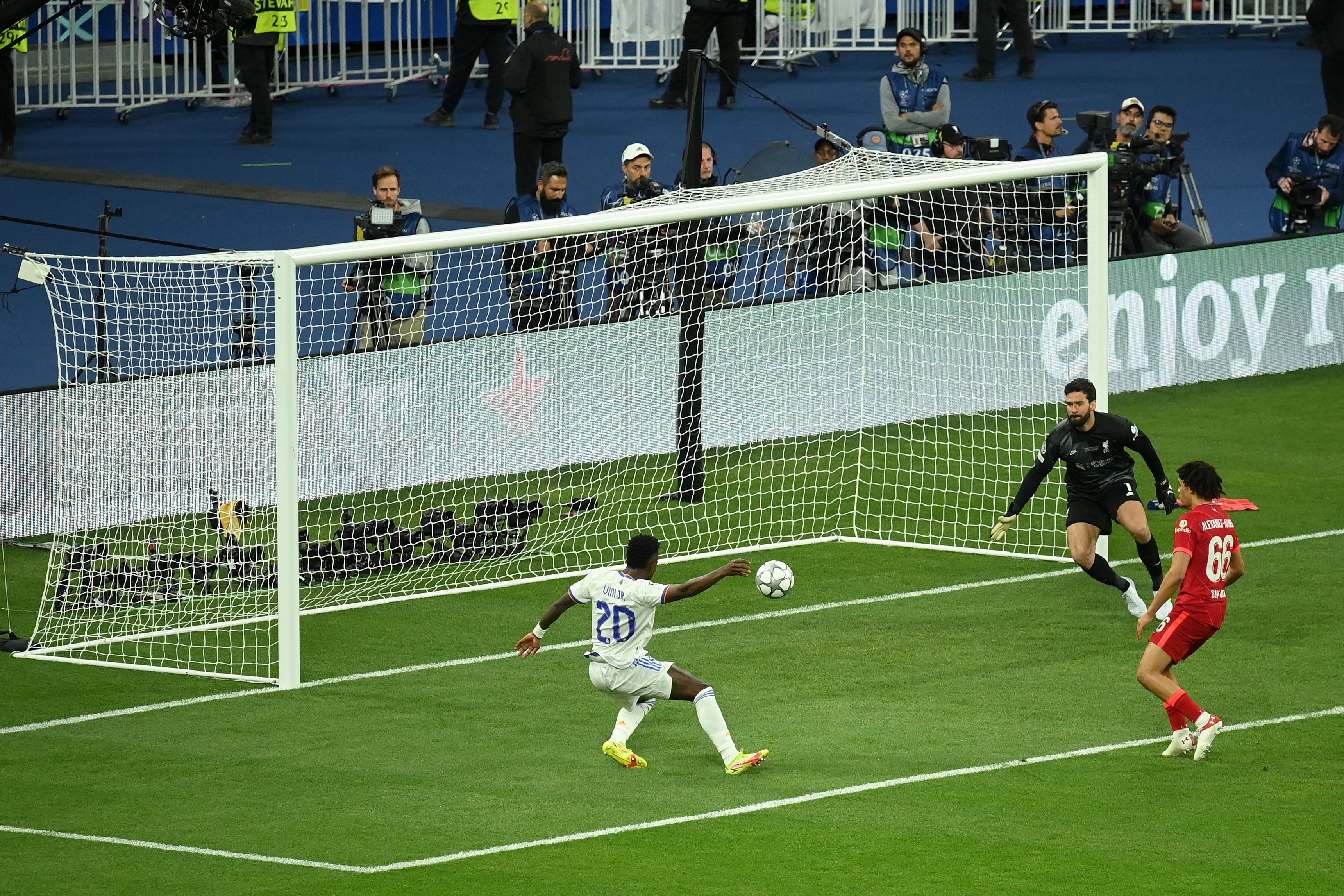
The 2021-22 Champions League final was played between Liverpool and Real Madrid at the Stade De France in Saint-Denis, France. Real Madrid won the game 1-0.
Click on the image below for more information about the match.
The 2022-23 Champions League final was played between Manchester City and Inter Milan at the Atatürk Olympic Stadium in Istanbul, Turkey. Manchester City won the game 1-0.
Click on the image below for more information about the match.
